Before you begin
Prepare a file-and-database backup, a staging environment and recovery access outside the WordPress dashboard. Read version and compatibility requirements.
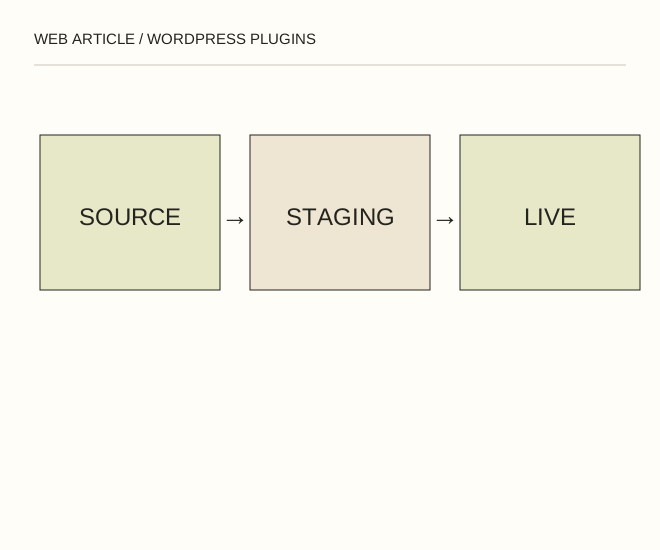
Text explanation of the diagram
Verify source → Test a copy → Record rollback. A plugin may save database settings and alter page handling. Removing its directory does not necessarily reverse all changes, which is why a complete pre-installation backup matters.
The procedure
- Start with the official WordPress directory or the developer’s verified page. On GitHub, confirm the real author and that the archive is an installable release rather than source code requiring a build.
- Install it on a test copy. Check ordinary pages, the editor, forms and error logs. Review what data the plugin sends elsewhere and whether an external account is required.
- Deploy to production only after testing and with a rollback plan. Record the version and update mechanism: a GitHub ZIP does not necessarily receive automatic dashboard updates.
A worked example
A plugin may save database settings and alter page handling. Removing its directory does not necessarily reverse all changes, which is why a complete pre-installation backup matters.
Check the result
The feature works in staging, no errors appear, the update source is known and the owner can recover the site if the dashboard fails.
A common mistake
Avoid nulled builds and random archives. Publicly visible source code is not an independent security assessment.
Sources and next steps
Diagram and examples: Web Article editorial team. The diagram explains a principle; it is not an interface capture or a software test result.