Before you begin
Close private windows and notifications. Write down what you did, what you expected and what happened. A screenshot without these three points often cannot support diagnosis.
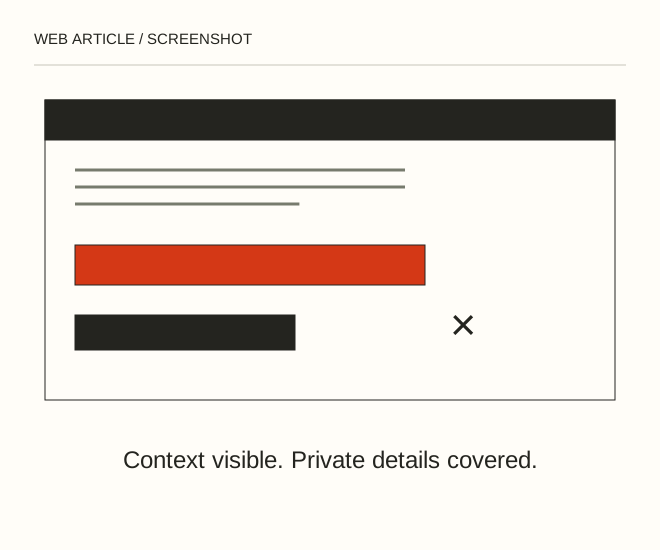
Text explanation of the diagram
Show context → Remove private data → Reopen the saved file. For a report that a button fails, show the button, error message and nearby fields without personal information. Add the browser, operating system and steps to reproduce. Do not publish tokens from the address bar.
The procedure
- On Windows, use Win + Shift + S to select a region. On Mac, Shift + Command + 4 selects an area. Button labels and additional capture modes depend on your system version.
- Save as PNG when small lettering matters. Avoid photographing a monitor: glare and moiré reduce readability. For a long process, use several captioned steps rather than an overloaded collage.
- Open the saved image and cover sensitive details with an opaque fill. Export a flattened copy, reopen it and verify that the concealed information cannot be read.
A worked example
For a report that a button fails, show the button, error message and nearby fields without personal information. Add the browser, operating system and steps to reproduce. Do not publish tokens from the address bar.
Check the result
Text remains readable at normal zoom; the important element is not cropped; addresses, keys and notifications are absent. Provide a useful explanation rather than only a filename such as screenshot-final.png.
A common mistake
Blur and translucent highlighters are not always reliable redaction. Cropping inside an editable, layered document may also remain reversible.
Sources and next steps
Diagram and examples: Web Article editorial team. The diagram explains a principle; it is not an interface capture or a software test result.