Before you begin
Save a copy and check the selected layers. For a tilted horizon, decide which edges can be cropped after straightening.
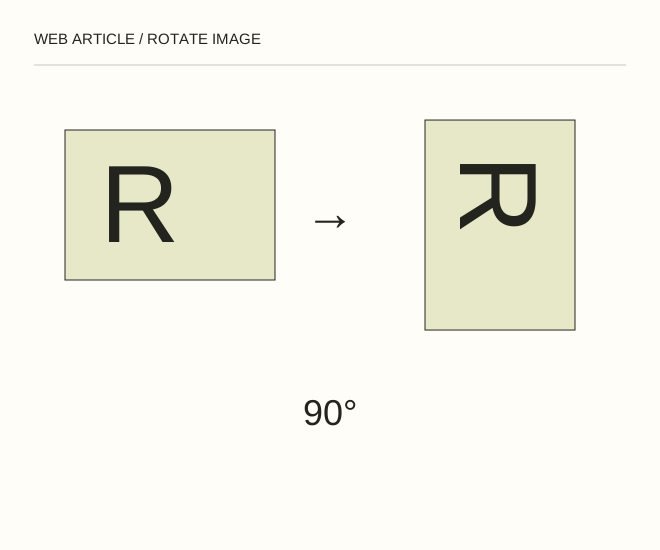
Text explanation of the diagram
Canvas / layer → Angle → Inspect edges. A 90° rotation turns a 1200 × 800 rectangle into 800 × 1200 without changing its proportions. A small horizon correction requires cropping and therefore reduces the usable area.
The procedure
- Use Image → Image Rotation for a 90° turn of the whole photograph. Select the appropriate layer and Free Transform when only one object should rotate.
- For an arbitrary angle, align a reference line and inspect the edges. Crop or deliberately fill empty triangles; do not stretch the whole photograph simply to remove them.
- Confirm the transformation and export a separate file. Open it outside the editor: camera orientation metadata can sometimes be interpreted differently by another application.
A worked example
A 90° rotation turns a 1200 × 800 rectangle into 800 × 1200 without changing its proportions. A small horizon correction requires cropping and therefore reduces the usable area.
Check the result
Lettering and faces are not mirrored; the correct layer changed; no accidental transparent corners remain. Browser orientation matches the editor.
A common mistake
Flip Horizontal mirrors rather than rotates. Reversed lettering is a different result.
Sources and next steps
- Adobe — Transform objects
- Как повернуть картинку в Photoshop по часовой или против часовой стрелки — 2010-01-12 (RU)
Diagram and examples: Web Article editorial team. The diagram explains a principle; it is not an interface capture or a software test result.